Using Gemini AI photo editing prompts can change your editing work. They help you skip boring repetitive steps every single time. You get better results without losing your personal photography style. This guide gives you real prompts that actually work well.
Good prompts help Gemini understand exactly what you need. You can use them for portraits, products, and outdoor shots. Each prompt in this guide has one clear and focused goal. You save time and still keep full control of your edits.
These Gemini AI photo editing prompts are easy to copy and use. You can adjust small details to match your own photo style. Every section explains the edit before giving you the prompt. Start with the one that fits your current photo project best.
Why Gemini Works So Well for Photo Editing
Gemini reads your photo instructions in a very smart way. It understands words about light, color, texture, and tone. That makes Gemini AI photo editing prompts far more accurate. Simple filters cannot match this level of editing control.
When you describe a look, Gemini connects it to your image. It understands the subject and the background separately. Small corrections stay small and large changes stay balanced. This is what makes Gemini different from basic editing tools.
Gemini also knows what details must stay completely untouched. For portraits, it keeps eyes, hair, and skin texture safe. For products, it respects color accuracy above everything else. Your prompt just needs clear direction and it handles the rest.
See More: 15 Best Google Gemini AI Photo Editing Prompts
How to Write Effective Photo Editing Prompts
Writing a good prompt does not need to be complicated at all. Keep your message short, direct, and focused on one main goal. Gemini performs best when it knows exactly what you want. Adding limits tells it how far to go with every edit.
Here is what every strong prompt should always include:
- Define your subject and which part of the image matters most
- Pick one editing category like light, color, cleanup, or texture
- Add clear limits so Gemini knows how far it should go
- Mention what stays untouched like face shape or background blur
- Add one or two numbers to control the strength of the edit
Using numbers like “+8 warmth” or “10 percent deeper” gives Gemini a clear target. Without numbers, the model may go too far or not far enough. Describing what to avoid is just as important as describing what to do. A well-written prompt always has both a goal and a boundary.
You can also combine two small goals inside one clean prompt. For example, mix a light cleanup with a mild color correction. Just keep the structure simple and the priority very clear. This way Gemini follows your intent step by step with ease.
Top 10 Gemini Photo Editing Prompts to Elevate Your Edits
Every prompt below is built around one clear editing goal. They work best when you match the prompt to your photo type. Start with the closest match and then adjust small details. These Gemini AI photo editing prompts are ready to use now.
You can copy any prompt directly and test it on your image. Adjust the numbers or details to fit your specific shot. Over time, you will build your own personal prompt library. That library will make your editing workflow much faster.
1. Natural Skin Retouching
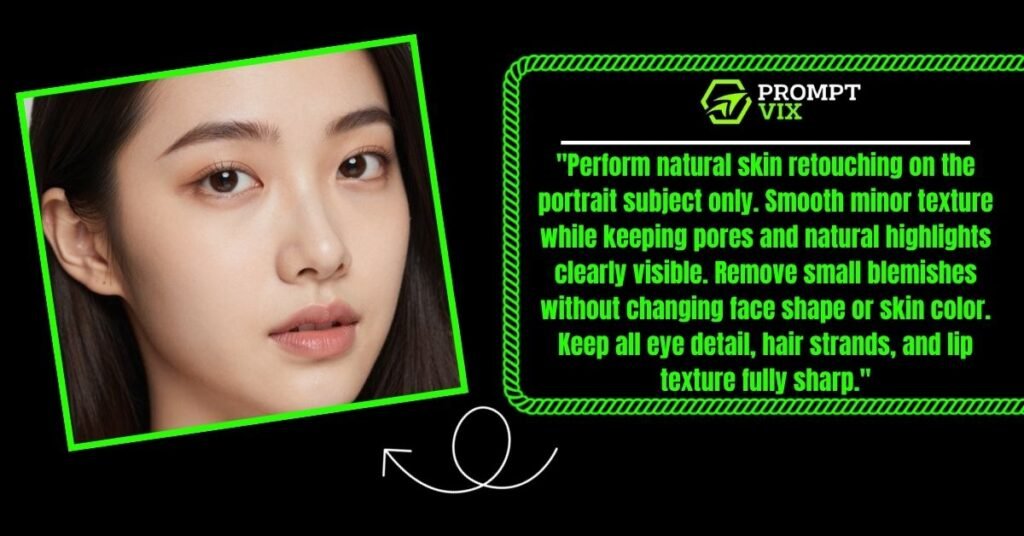
Portraits look best when skin feels polished but still real. Gemini handles this well when you ask for natural results. You need to tell it which areas to leave completely alone. Keeping pores and highlights visible makes the skin look human.
Prompt:
“Perform natural skin retouching on the portrait subject only. Smooth minor texture while keeping pores and natural highlights clearly visible. Remove small blemishes without changing face shape or skin color. Keep all eye detail, hair strands, and lip texture fully sharp.”
2. Portrait Lighting Enhancement
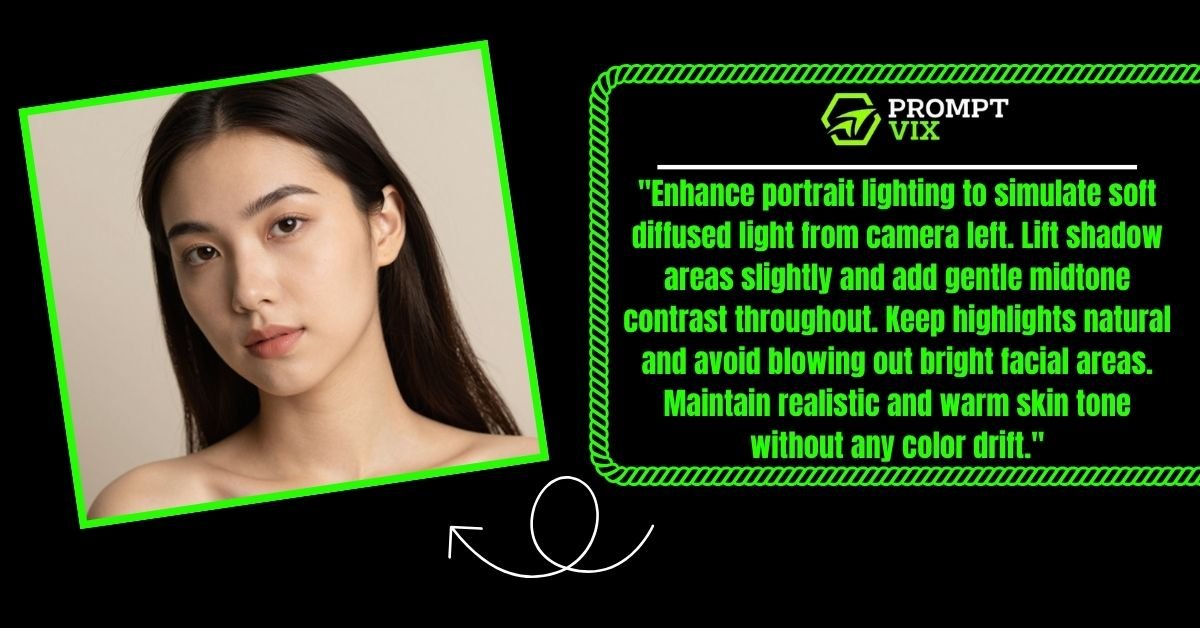
Flat lighting removes the mood and depth from a portrait. Gemini can simulate soft studio light with the right prompt. You describe the light direction and the model adjusts shadows. Adding skin tone protection keeps the edit looking very natural.
Prompt:
“Enhance portrait lighting to simulate soft diffused light from camera left. Lift shadow areas slightly and add gentle midtone contrast throughout. Keep highlights natural and avoid blowing out bright facial areas. Maintain realistic and warm skin tone without any color drift.”
3. Color Grading for Cinematic Look
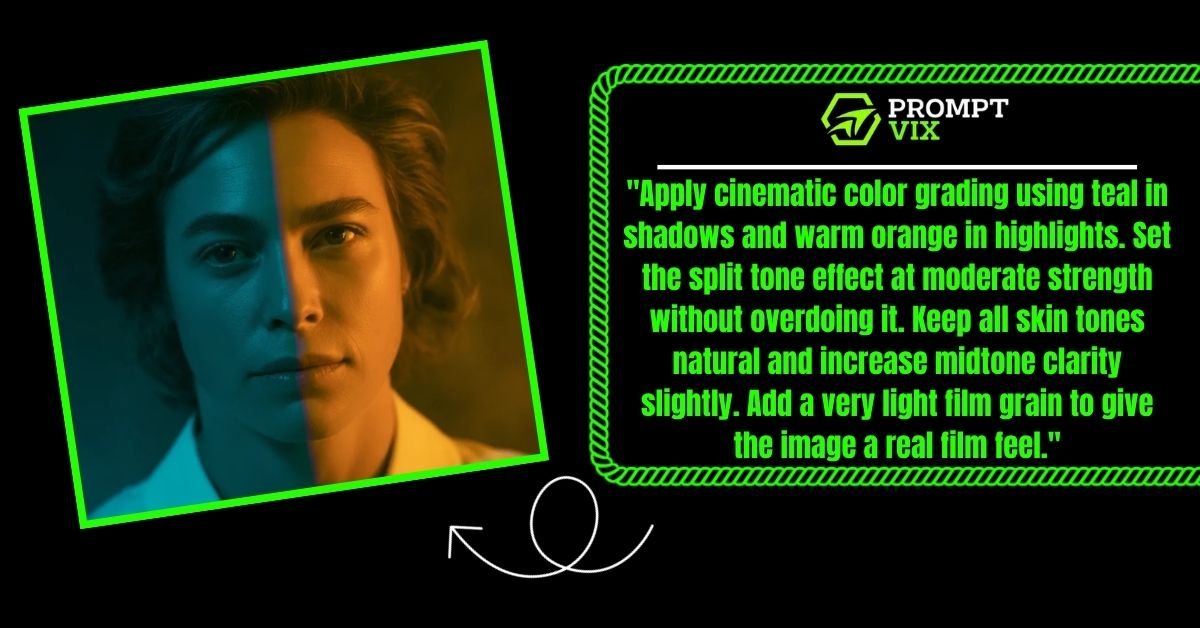
Cinematic photos use a cool-to-warm split across the tones. Teal shadows and warm highlights give that popular film look. Gemini recreates this when you describe both sides clearly. Asking for subtle grain keeps the image textured but not fake.
Prompt:
“Apply cinematic color grading using teal in shadows and warm orange in highlights. Set the split tone effect at moderate strength without overdoing it. Keep all skin tones natural and increase midtone clarity slightly. Add a very light film grain to give the image a real film feel.”
4. Background Cleanup and Distraction Removal
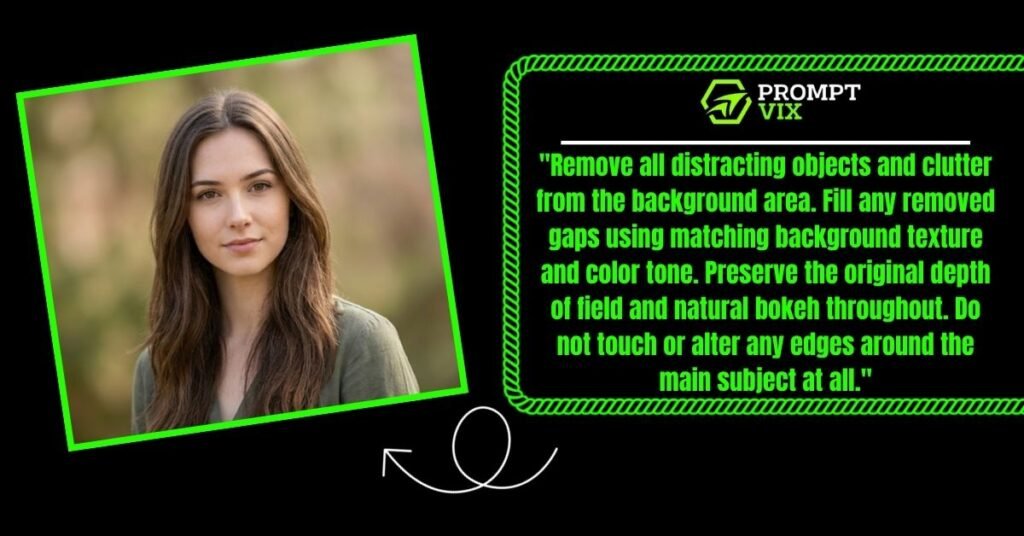
A busy background pulls attention away from your main subject. Gemini can remove clutter and fill gaps with matching texture. The key is to protect the original depth and blur of the scene. Without that protection the background can look flat and fake.
Prompt:
“Remove all distracting objects and clutter from the background area. Fill any removed gaps using matching background texture and color tone. Preserve the original depth of field and natural bokeh throughout. Do not touch or alter any edges around the main subject at all.”
5. Blemish and Imperfection Fix
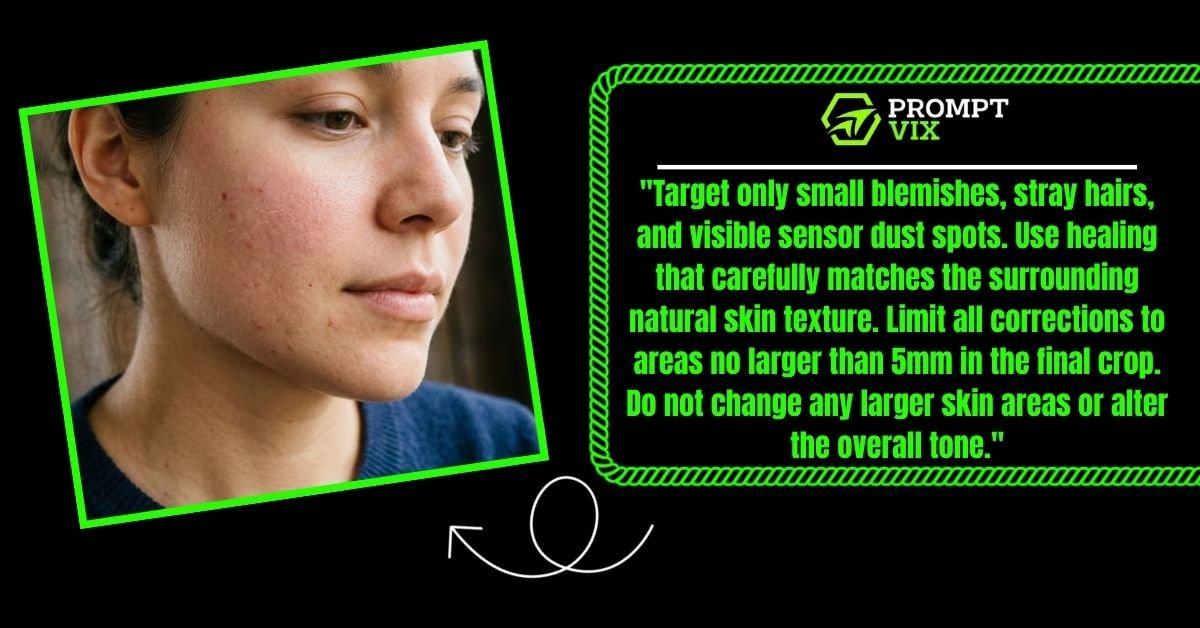
Tight portrait and product shots show every tiny imperfection. Dust, stray hairs, and small marks are easy distractions here. Gemini removes them well when you define the correction size. Keeping texture real is especially important for product shots.
Prompt:
“Target only small blemishes, stray hairs, and visible sensor dust spots. Use healing that carefully matches the surrounding natural skin texture. Limit all corrections to areas no larger than 5mm in the final crop. Do not change any larger skin areas or alter the overall tone.”
6. Realistic Makeup Enhancement
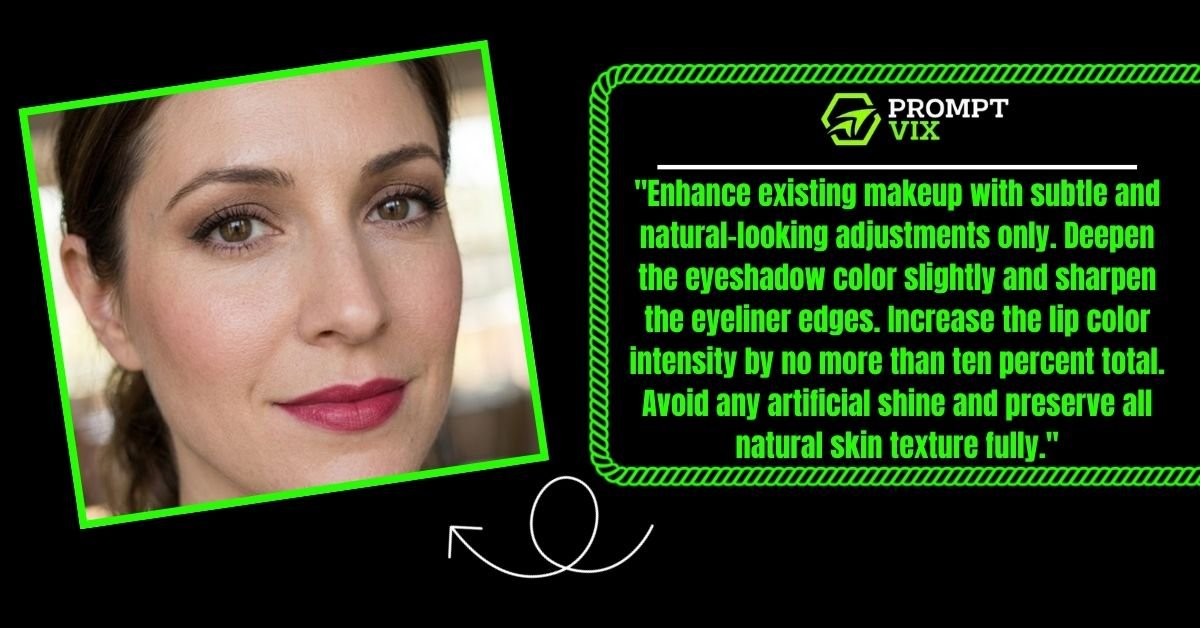
Makeup edits often go wrong when colors get pushed too far. The result looks painted and loses all its natural skin feel. Gemini keeps it realistic when you give it clear percentage limits. This type of prompt works great for fashion and editorial shots.
Prompt:
“Enhance existing makeup with subtle and natural-looking adjustments only. Deepen the eyeshadow color slightly and sharpen the eyeliner edges. Increase the lip color intensity by no more than ten percent total. Avoid any artificial shine and preserve all natural skin texture fully.”
7. Outdoor Photo Tone Correction
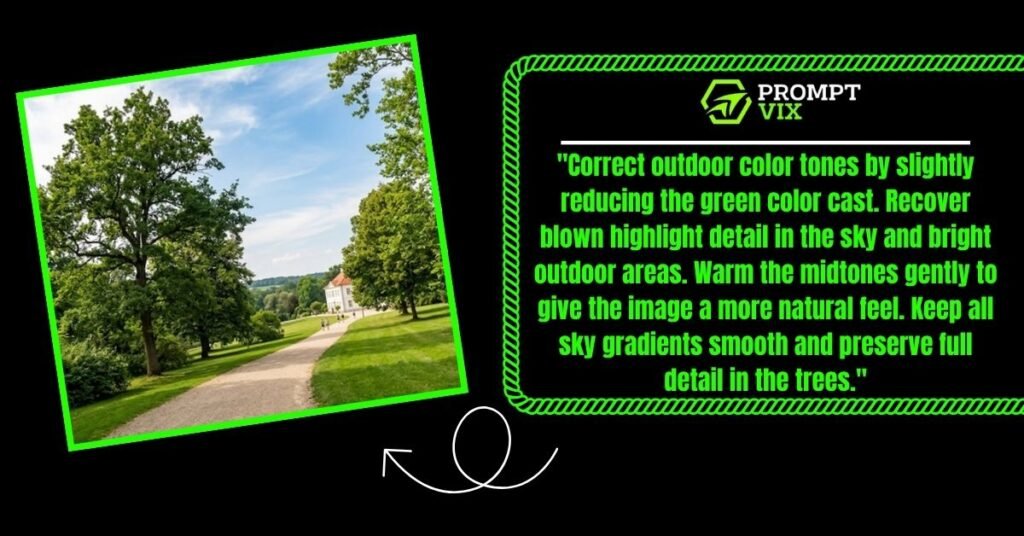
Outdoor photos often carry a green cast from surrounding trees. Reflected light from grass and leaves shifts the entire color tone. Gemini fixes this when you name the exact color problem clearly. Asking for smooth sky gradients prevents banding after correction.
Prompt:
“Correct outdoor color tones by slightly reducing the green color cast. Recover blown highlight detail in the sky and bright outdoor areas. Warm the midtones gently to give the image a more natural feel. Keep all sky gradients smooth and preserve full detail in the trees.”
8. Black-and-White Artistic Conversion
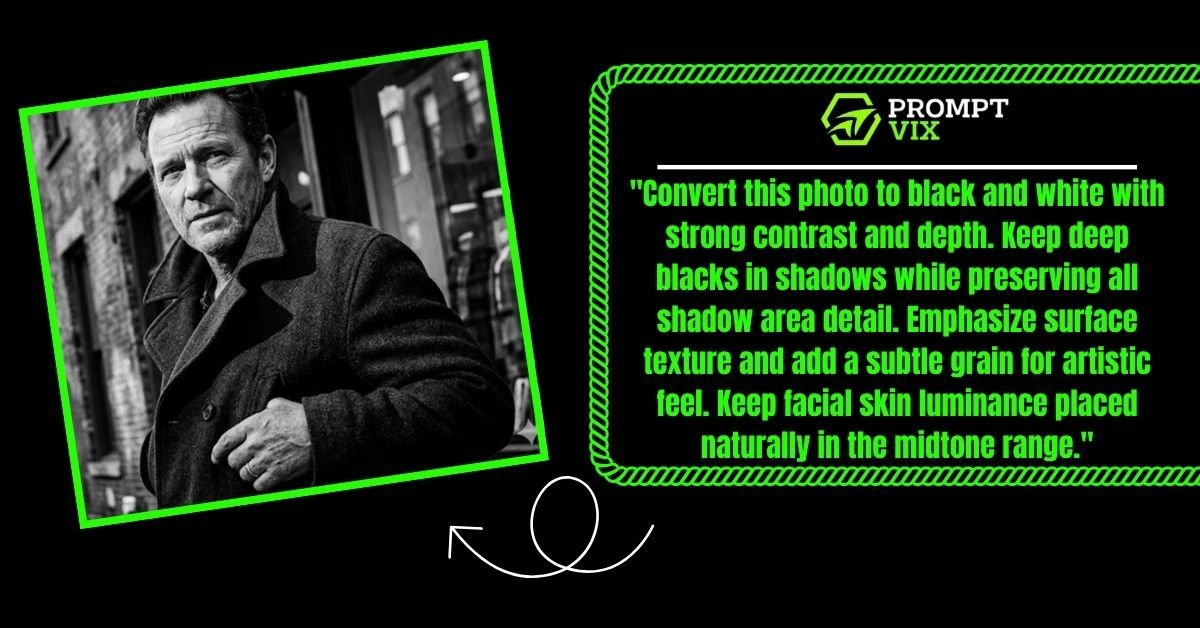
A good black-and-white edit needs contrast, not just gray tones. You need deep blacks, clean highlights, and visible texture too. Gemini converts with intention when you describe the tone range. Mentioning grain and luminance gives the image an artistic quality.
Prompt:
“Convert this photo to black and white with strong contrast and depth. Keep deep blacks in shadows while preserving all shadow area detail. Emphasize surface texture and add a subtle grain for artistic feel. Keep facial skin luminance placed naturally in the midtone range.”
9. Product Photo Polish and Sharpen
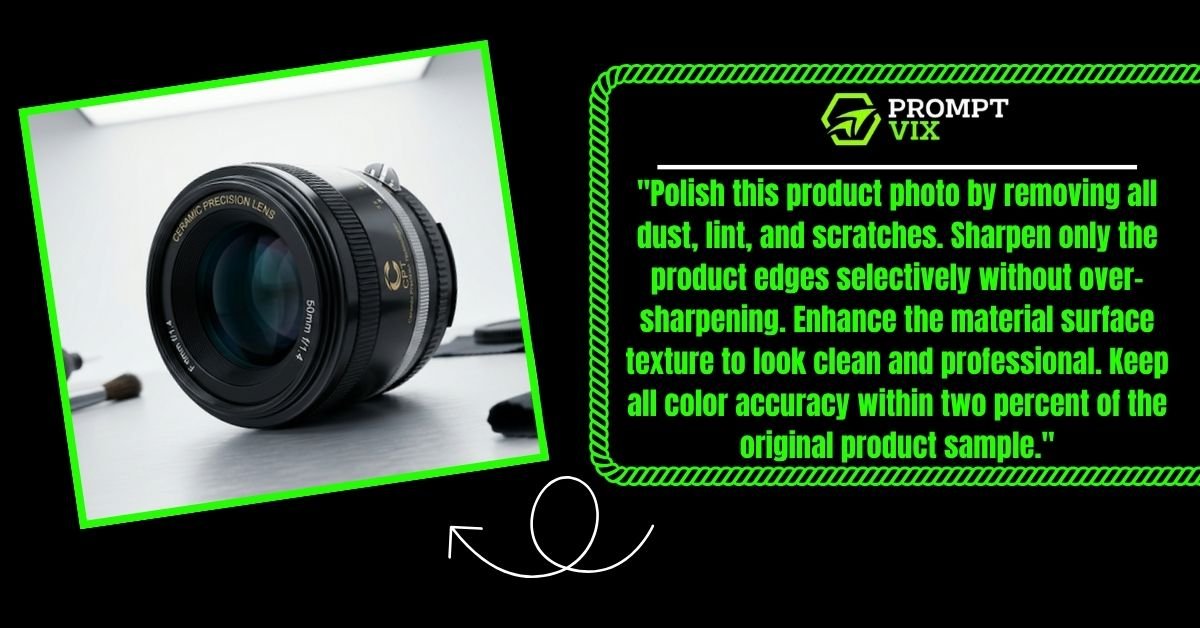
Product images need sharp edges and completely accurate colors. A small color shift can make a product look different than reality. Gemini handles clarity and cleanup when your prompt is very direct. Adding a color accuracy limit keeps the product looking consistent.
Prompt:
“Polish this product photo by removing all dust, lint, and scratches. Sharpen only the product edges selectively without over-sharpening. Enhance the material surface texture to look clean and professional. Keep all color accuracy within two percent of the original product sample.”
See More: Top 12 Best New Google Gemini AI Photo Editing Prompt Boy
10. Social Media-Ready Aesthetic Edit
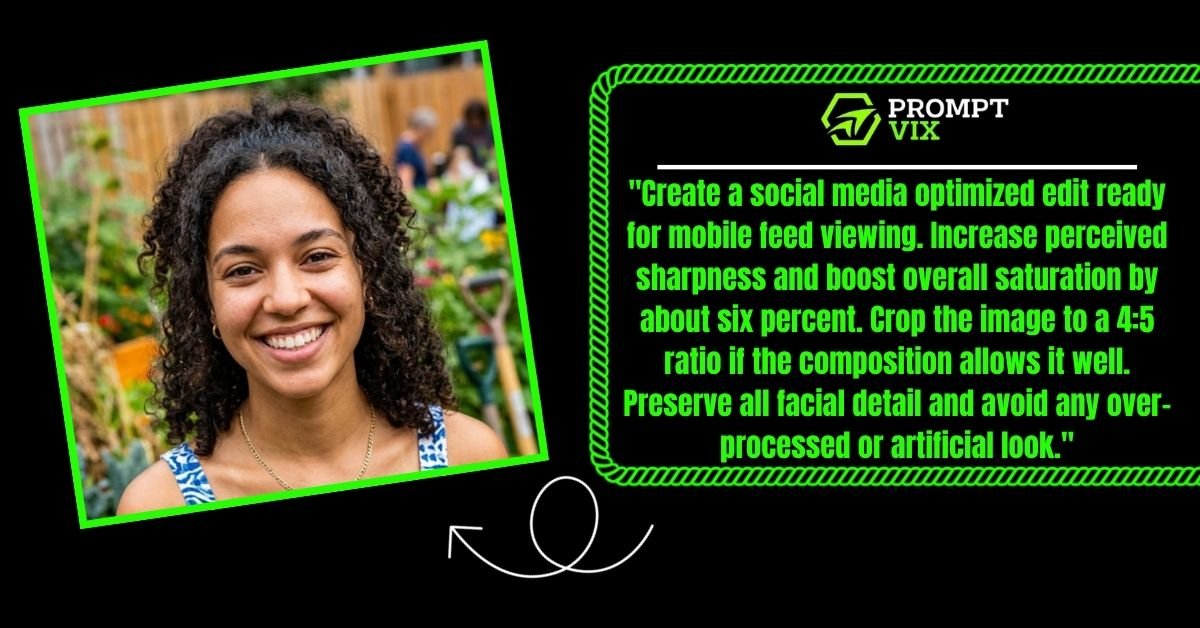
Mobile viewers see photos differently than desktop screen viewers. Contrast, saturation, and sharpness all read stronger on small screens. Gemini can optimize your image for feeds when you describe the target. This keeps your photo looking great without appearing over-edited.
Prompt:
“Create a social media optimized edit ready for mobile feed viewing. Increase perceived sharpness and boost overall saturation by about six percent. Crop the image to a 4:5 ratio if the composition allows it well. Preserve all facial detail and avoid any over-processed or artificial look.”
Last Words
Using Gemini AI photo editing prompts gives you real editing control. Each prompt works like a small recipe you can reuse many times. You spend less time guessing and more time doing actual shooting. Natural and predictable results come from clear and simple prompts.
Over time, you will notice what works best for your photo style. Build your own library of prompts for portraits, products, and landscapes. This approach saves time while keeping your creative style fully intact. Gemini becomes a true editing partner when you give it clear direction.
Frequently Asked Questions
What are Gemini AI photo editing prompts used for?
They are used to guide Gemini AI to edit photos with clear and controlled instructions for color, light, and cleanup tasks.
Can beginners use Gemini AI photo editing prompts easily?
Yes, beginners can use them easily by starting with simple and direct prompts that focus on just one editing goal.
How specific should my Gemini photo editing prompt be?
It should be specific enough to include the subject, the goal, the limits, and what must stay completely untouched.
Do Gemini AI photo editing prompts work for portrait photography?
Yes, they work very well for portraits especially for skin retouching, lighting, and natural makeup enhancement edits.
Can I use Gemini prompts for product photo editing?
Yes, product photo prompts work great for sharpening edges, removing dust, and keeping color accuracy very precise.
What happens if my Gemini photo prompt is too vague?
The model may over-edit or miss your goal entirely so always add limits and at least one or two numbers for control.
How do I make my Gemini photo editing prompts more effective?
Include the subject, the main edit category, what to avoid, and a small numeric value to control the edit strength.
Are Gemini AI photo editing prompts good for social media photos?
Yes, you can use them to optimize saturation, sharpness, and crop ratio specifically for mobile feed viewing.
Can I combine two edits in one Gemini photo editing prompt?
Yes, you can combine two small goals as long as you keep the structure clean and one goal stays the clear priority.
Do Gemini AI photo editing prompts replace professional editing software?
They help speed up the editing process but work best alongside editing tools for full professional quality results.